.tooltip {
    position: relative;
}

.tooltip:before,
.tooltip:after {
    --scale: 0;
    --arrow-size: 8px;
    --tooltip-color: hsla(191, 0%, 95%, 0.9);
    --tooltip-text-color: #222222;
    position: absolute;
    top: calc(100% + var(--arrow-size));
    left: 50%;
    transform: translateX(-50%) translateY(var(--translate-y, 0)) scale(var(--scale));
    transition: 150ms transform;
    transform-origin: top center;
}

.tooltip:before {
    --translate-y: var(--arrow-size);
    content: attr(data-tooltip);
    color: var(--tooltip-text-color);
	font-size:.8rem;
	line-height :1;
	padding:.4rem .6rem;
	width:max-content;
	background :var(--tooltip-color);
	border-radius:.3rem;
	text-align:center;
}

.tooltip:hover:before,
.tooltip:hover:after {
	--scale :1 ;
}

.tooltip:after{
	--translate-y :0;
	content :'';
	border :var (--arrow-size) solid transparent;
	border-bottom-color :var (--tooltip-color);
	transform-origin :bottom center;
}
How to Set up CSS Tooltips with GenerateBlocks
Note: In order to for this to work, you need to use a block from GenerateBlocks, which allows you to add custom HTML attributes.
Step 1: Copy the CSS code snippet above and paste it into your theme styles, or customizer CSS.
Step 2: Add the block you want to use to display the tooltip. In the example below, I’ve used the Shape block.
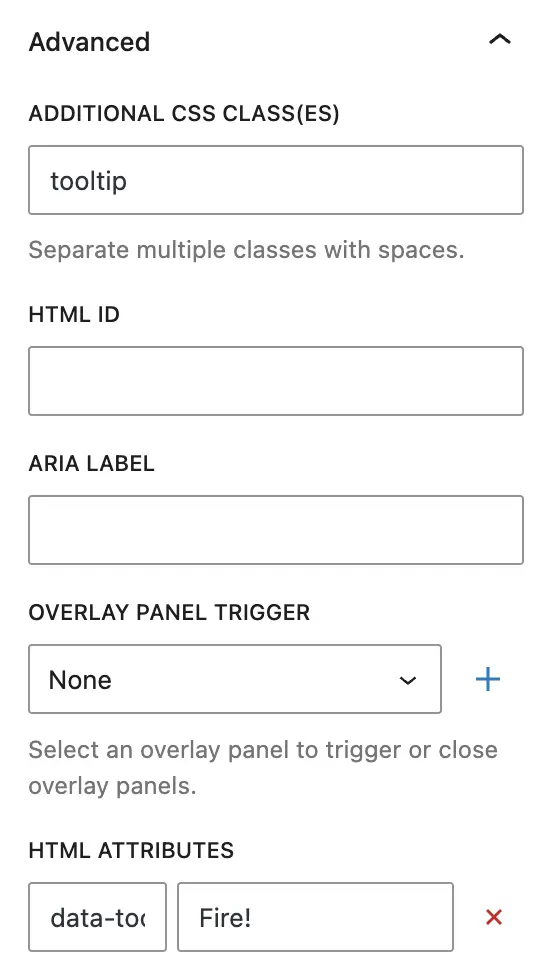
Step 3: Assign the “tooltip” class to the block.
Step 4: In the block settings, under the Advanced tab, add the following HTML attributes:
Name: data-tooltip
Value: Text goes here
End Result: