
/* Remove default browser icon */
select {
  -webkit-appearance: none;
  -moz-appearance: none;
  appearance: none;
  text-indent: 1px;
  text-overflow: '';
}

/* For Internet Explorer 10+ */
  select::-ms-expand {
  display: none;
}

/* Add your own icon */
select {
   background-image: url(https://jtdigital.ca/wp-content/uploads/2025/10/down-chevron-icon.png) !important;
   background-repeat: no-repeat;
   background-size: 22px 22px;
   background-position: 98% 50%;
}
Adding a Custom Dropdown Arrow for Select Fields on Forms
Note: This code snippet should work with any form plugin.
Step 1: Copy the CSS code snippet and paste into your theme styles, or customizer CSS.
Step 2: Replace the background-image URL with your own custom image/icon URL.
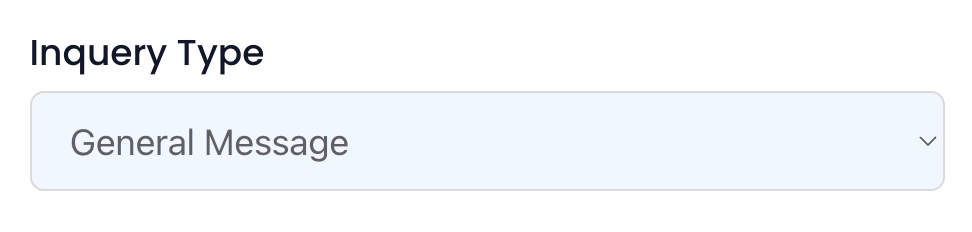
BEFORE:
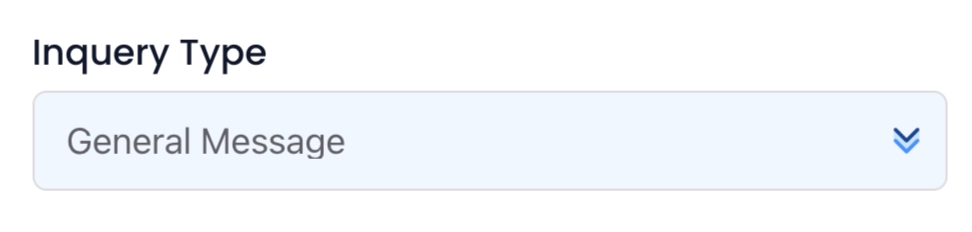
AFTER:

Why Use this Code Snippet?
By default, web browsers inject their own styling into form Select fields, which often look out of place. Adding your own icon offers flexibility with styling and more intuitive UI.